Full circle management
From the time clock to the invoice: the office side of the shop.
Straight into QuickBooks
Finished jobs, laid out the way QuickBooks takes them.
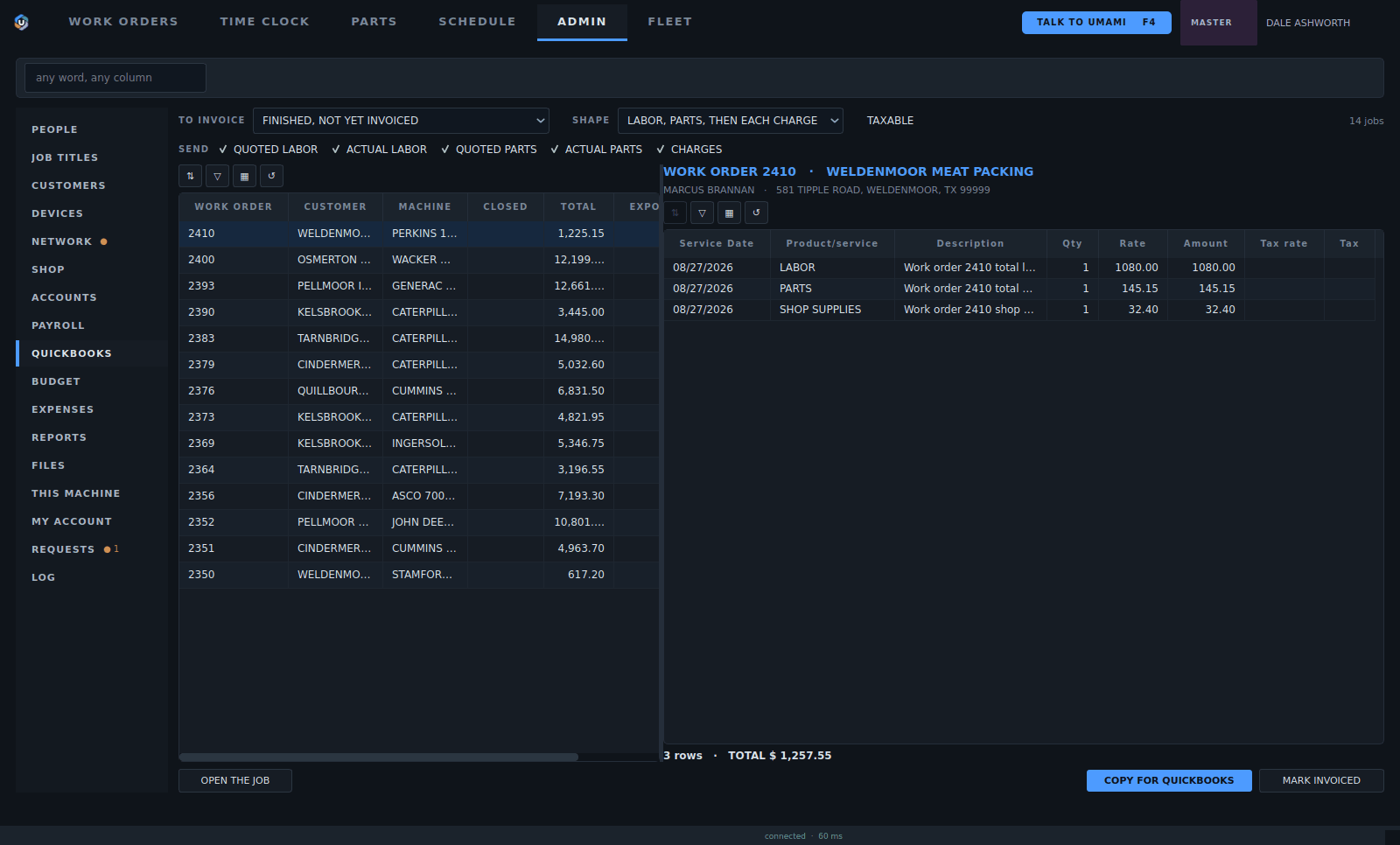
1Pick what to invoice: finished jobs not yet invoiced, jobs in progress, and more.
2Every job ready to bill, with its total.
3One total, or labor, parts and each charge on its own row.
4The invoice rows in QuickBooks' own columns.
5Copy the job and paste it straight into QuickBooks.
- Pick what to invoice: finished jobs not yet invoiced, jobs in progress, and more.
- Every job ready to bill, with its total.
- One total, or labor, parts and each charge on its own row.
- The invoice rows in QuickBooks' own columns.
- Copy the job and paste it straight into QuickBooks.
Time clock
Who is in, what they are on, and what has been booked today.
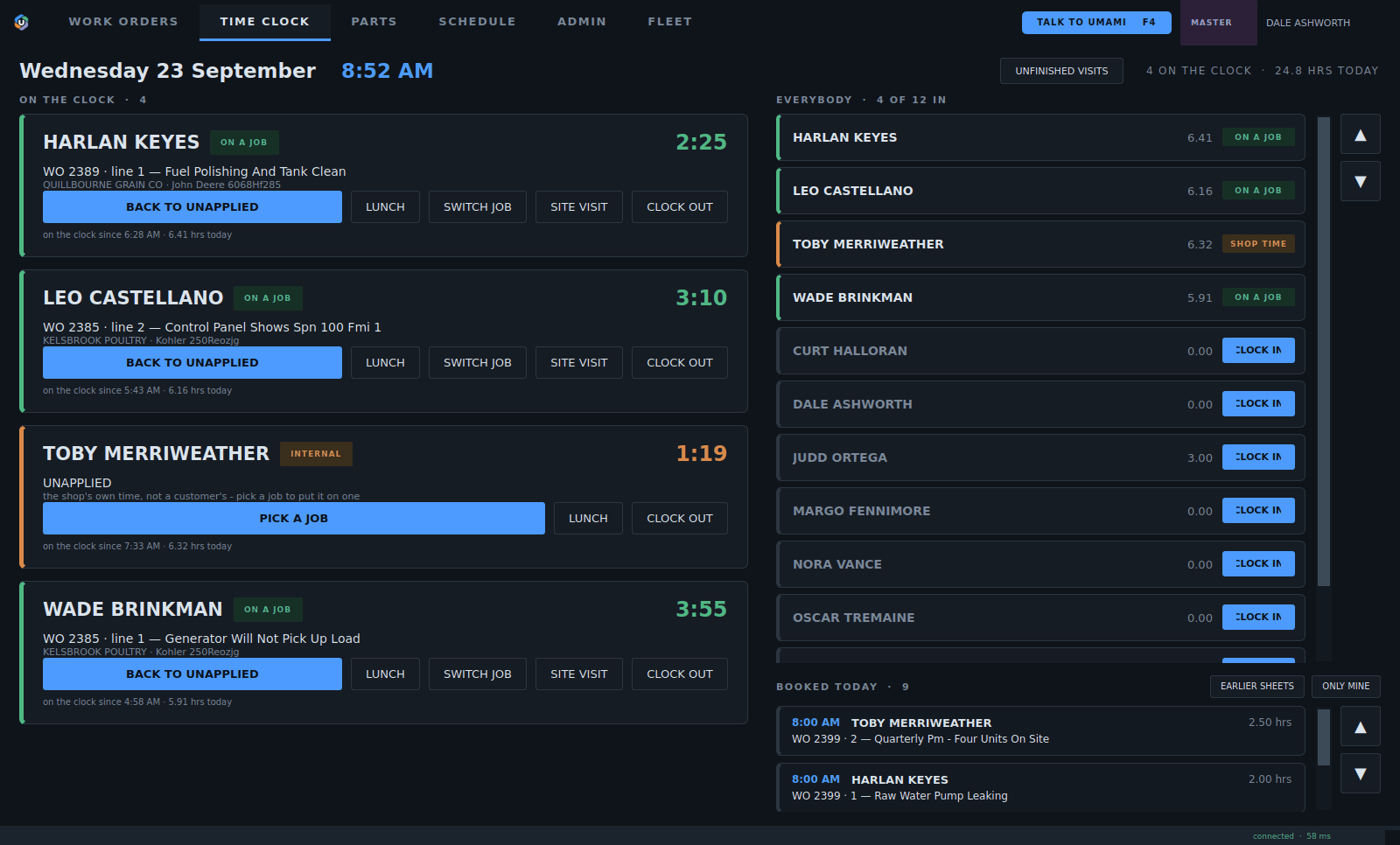
1Clock on to a job, switch jobs, go to lunch or clock out.
2Everybody in the shop, and who is on the clock.
3The hours booked today.
- Clock on to a job, switch jobs, go to lunch or clock out.
- Everybody in the shop, and who is on the clock.
- The hours booked today.
The schedule
The week on one board, by day, by person or by priority.
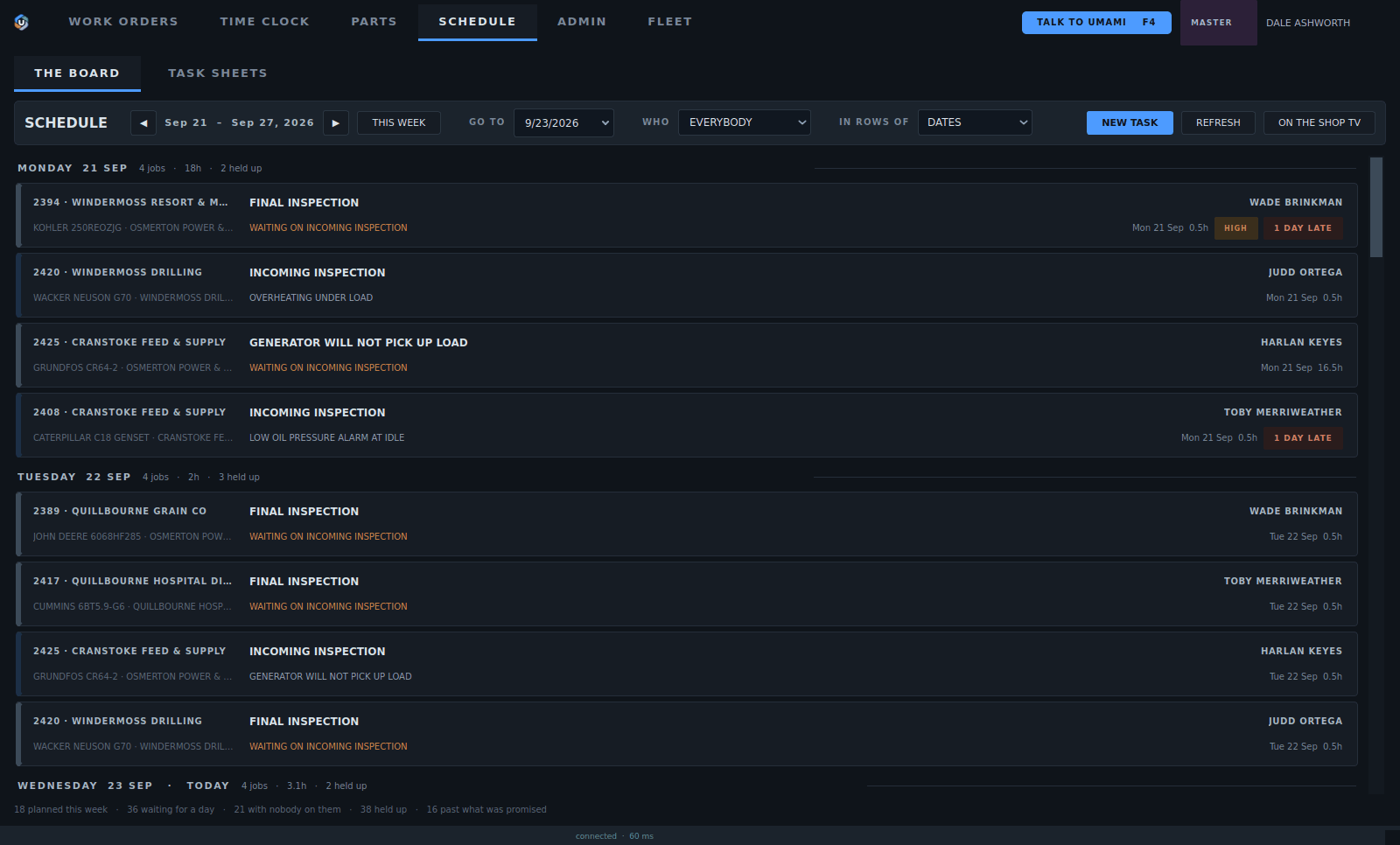
1Everybody or one person, in rows of dates, people or priority.
2Move through the weeks, or go to any date.
3Add a task, or put the board on the shop television.
4Late and high priority work stands out.
- Everybody or one person, in rows of dates, people or priority.
- Move through the weeks, or go to any date.
- Add a task, or put the board on the shop television.
- Late and high priority work stands out.
People
Everybody in the shop, how they are paid and what they may see.
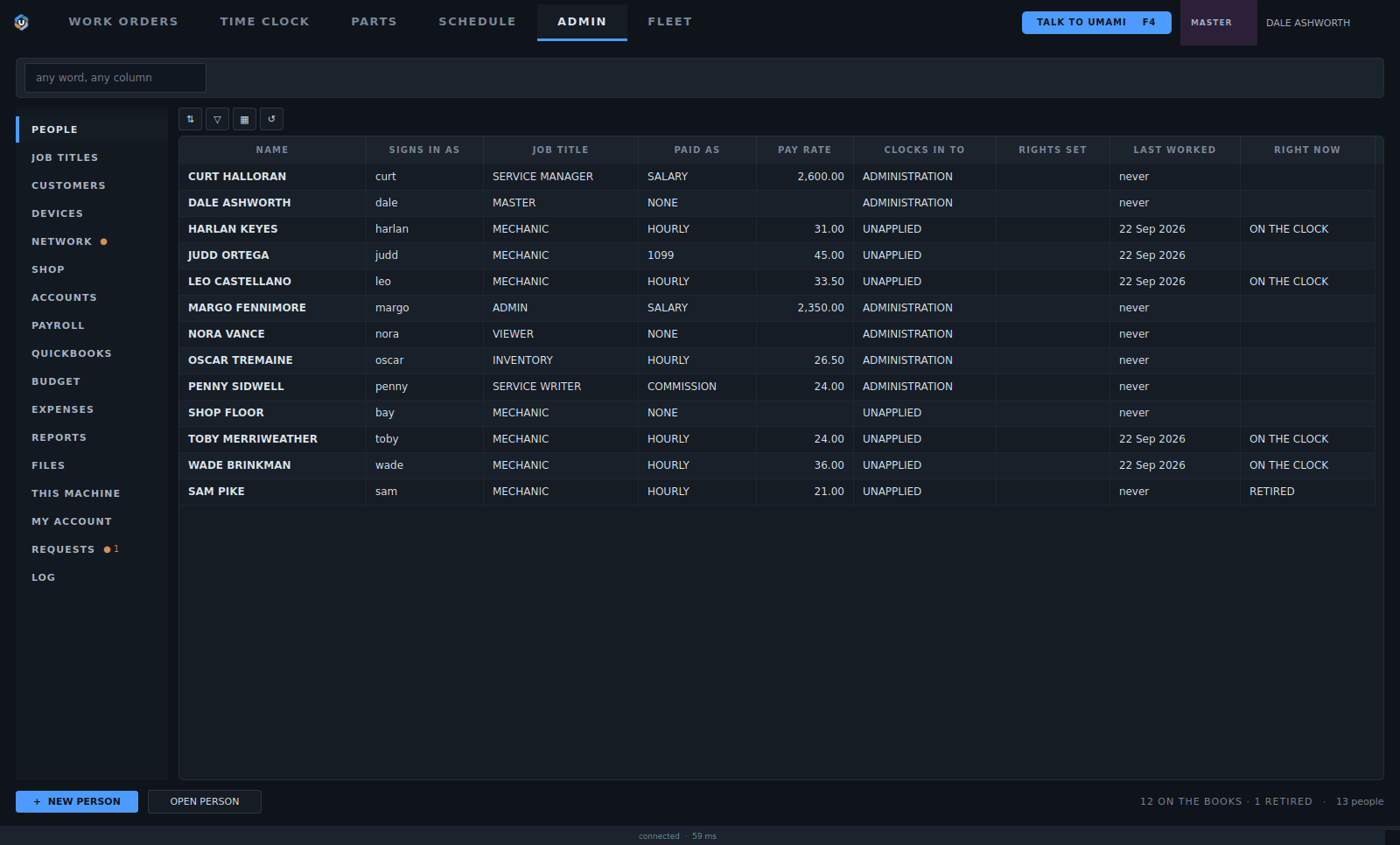
1Sign-in name, job title, how they are paid and their rate.
2Who is on the clock right now.
- Sign-in name, job title, how they are paid and their rate.
- Who is on the clock right now.
Payroll
The week's hours, billed and paid, ready to close.
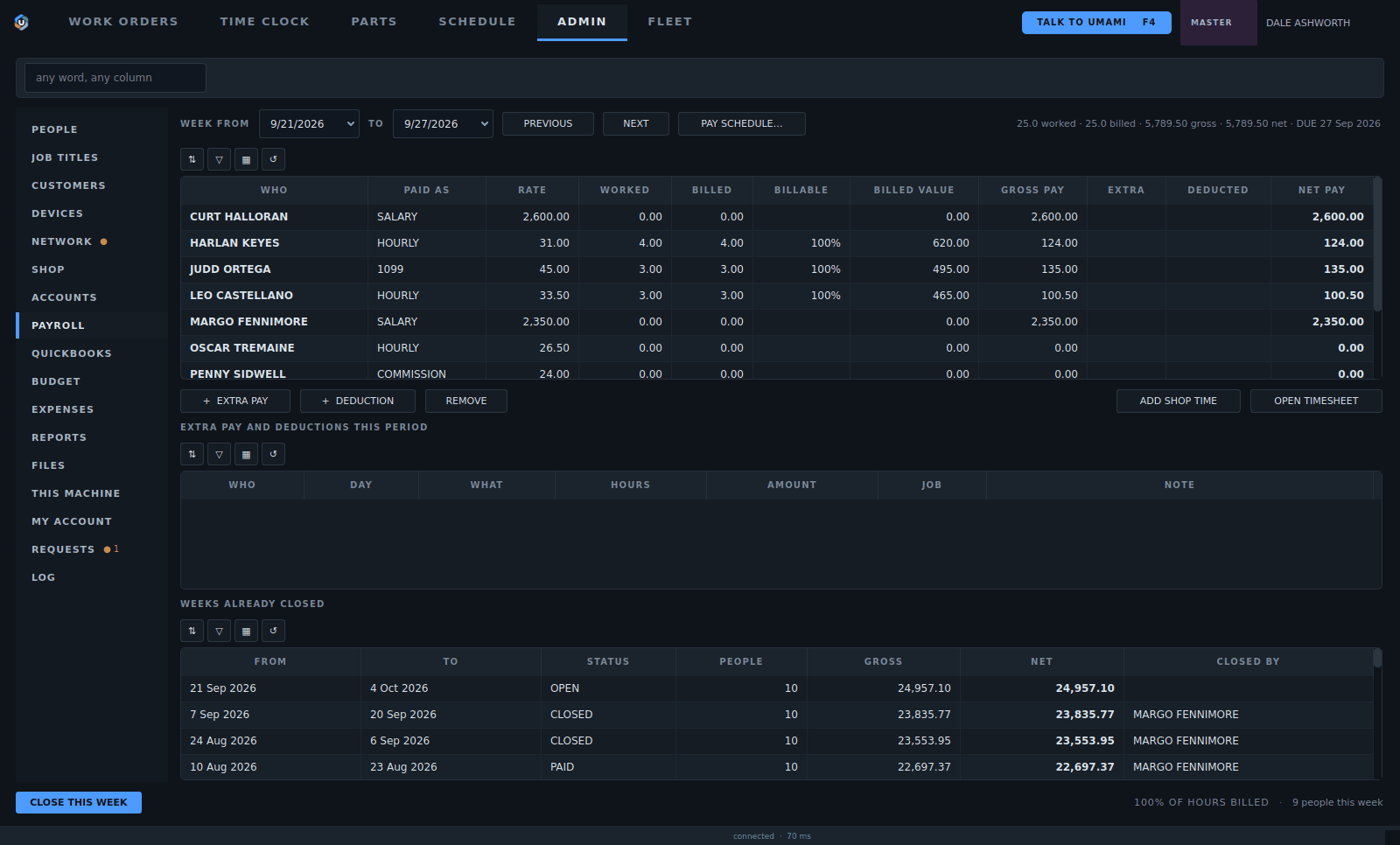
1Pick the pay week.
2Extra pay, deductions and shop time.
3Worked, billed, gross and net for each person.
4Weeks already closed, and who closed them.
- Pick the pay week.
- Extra pay, deductions and shop time.
- Worked, billed, gross and net for each person.
- Weeks already closed, and who closed them.
The budget
What goes out, where it goes, and what came in.
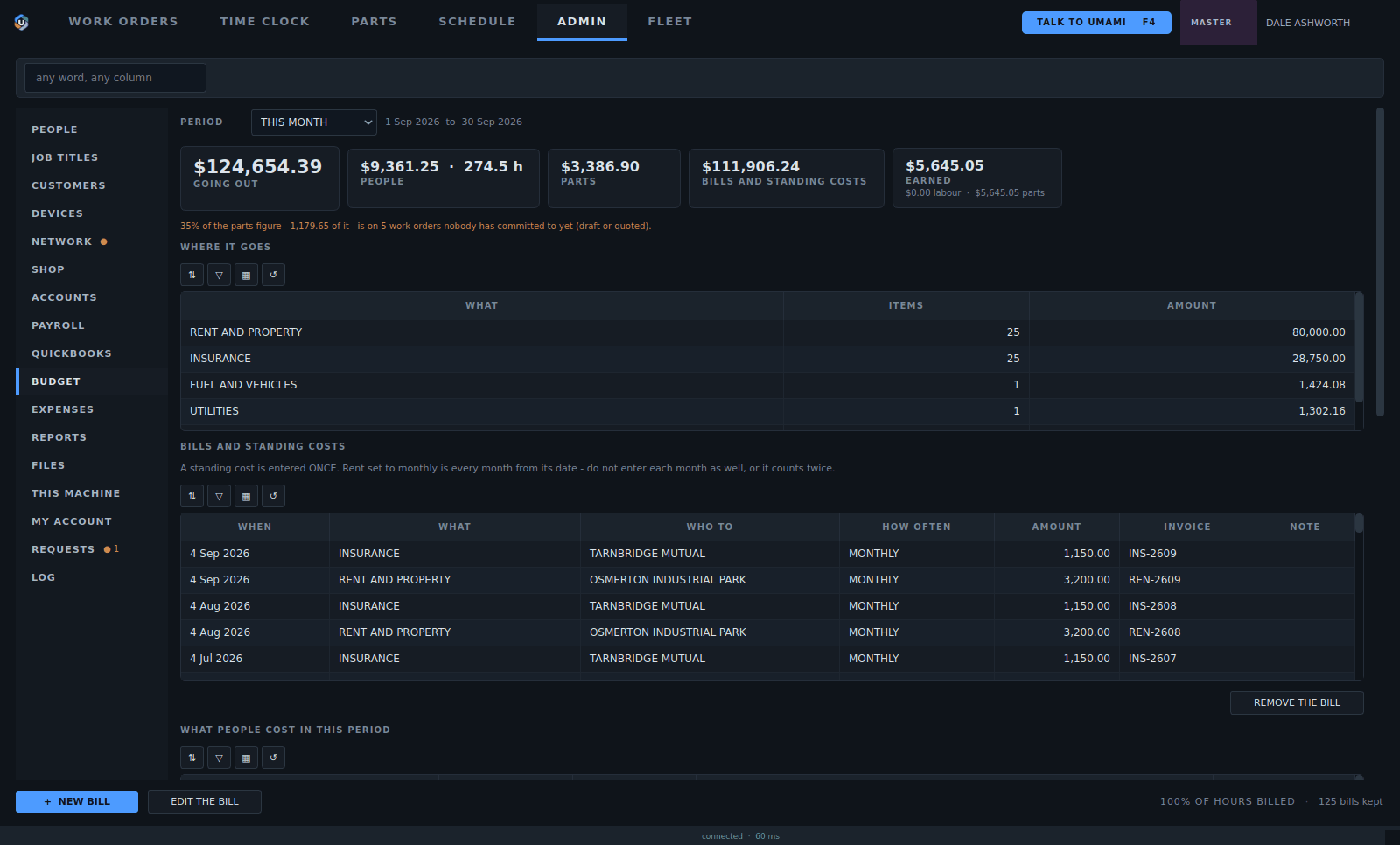
1What went out this period, on people, parts and bills, against what came in.
2Where the money goes.
3Rent, insurance and every standing bill.
- What went out this period, on people, parts and bills, against what came in.
- Where the money goes.
- Rent, insurance and every standing bill.